

How to Collect Logs from Tawasal
If you've encountered a bug or unexpected behavior in Tawasal, collecting application logs is the fastest way to help us investigate and resolve the issue. This guide will walk you through the process step by step — no technical skills required.
⚠️ Important: Logs may contain sensitive information Application logs can include personal data, message metadata, and device details. Please only share your logs with official Tawasal representatives — never post them publicly or send them to third parties.
Choose your platform below and follow the instructions.
 Web/Desktop App
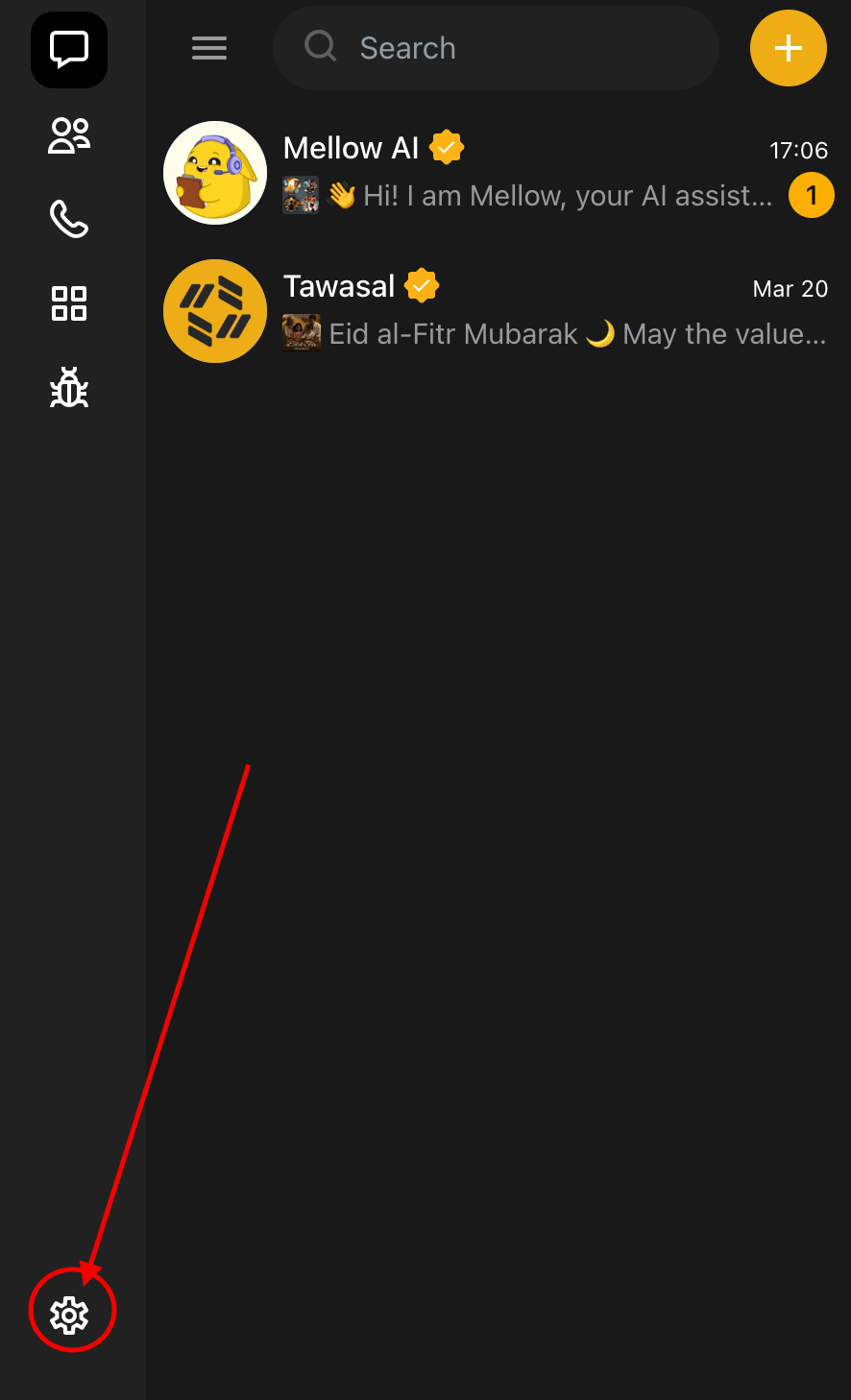
Step 1. Open Settings
Navigate to the app Settings.
Step 2. Enable Debug Mode
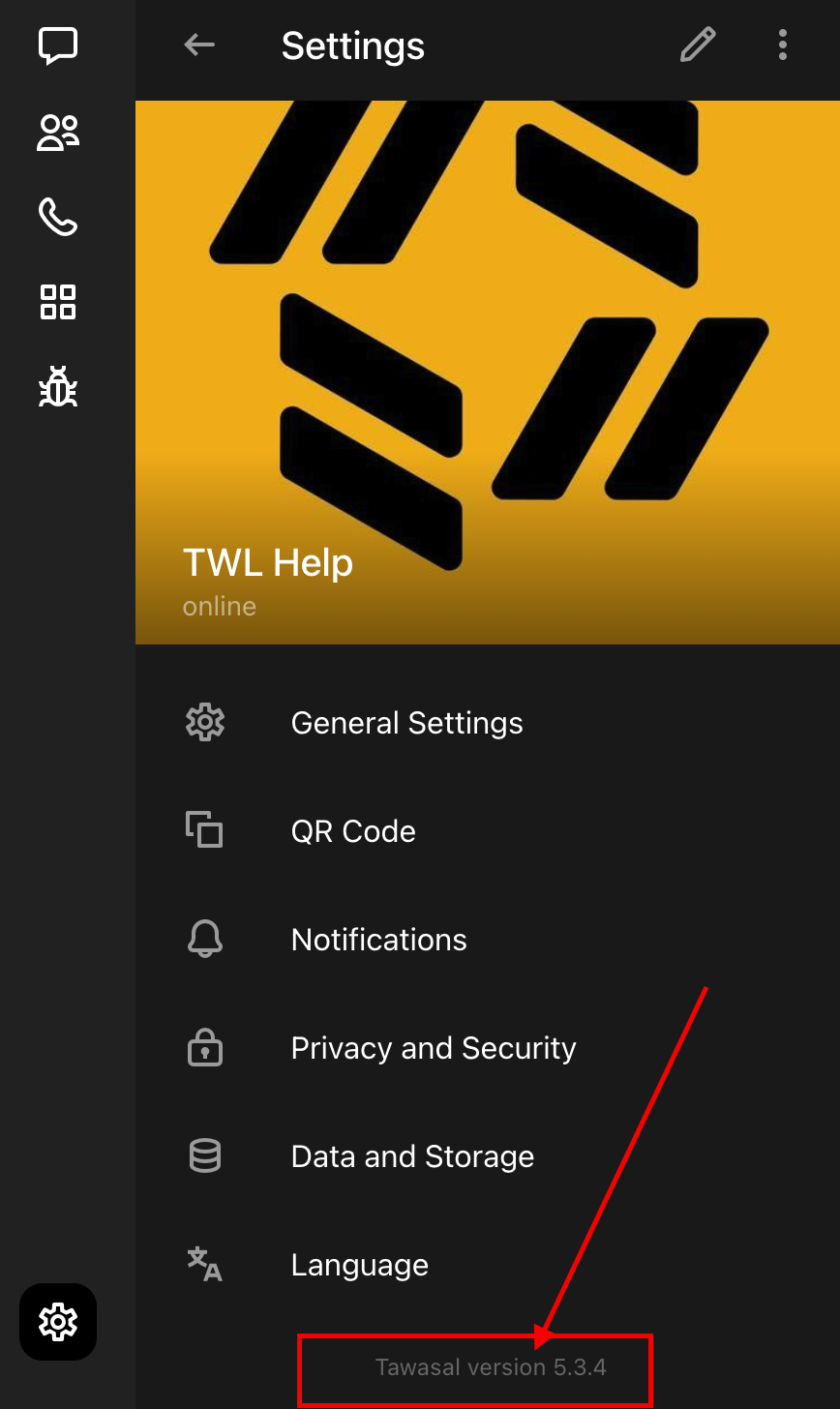
Scroll down to the app version number and click it 5 times in a row.
Step 3. Open the Debug Menu
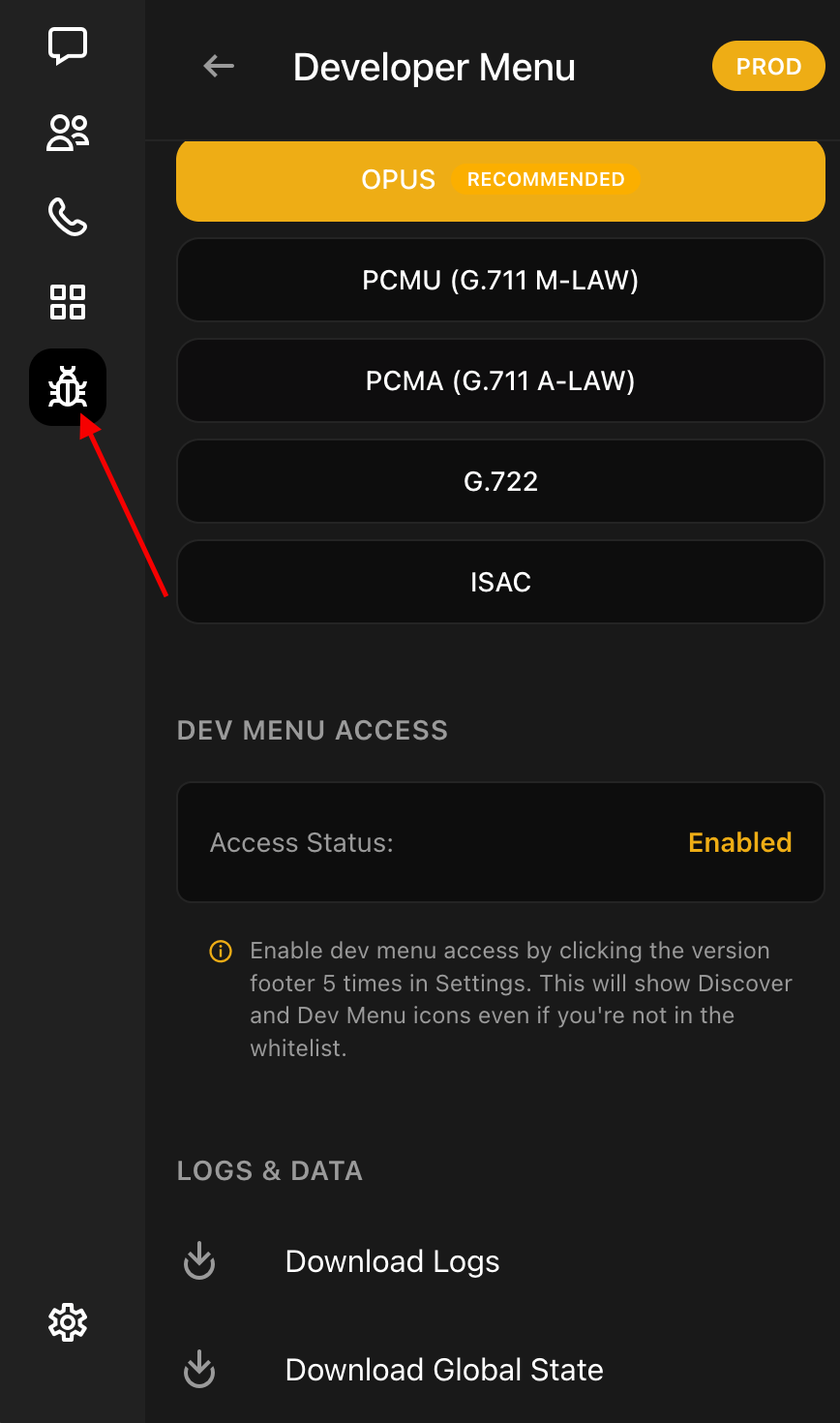
A new Debug item will appear in the left tab bar. Click on it. (If the debug menu does not open automatically)
Step 4. Download Logs
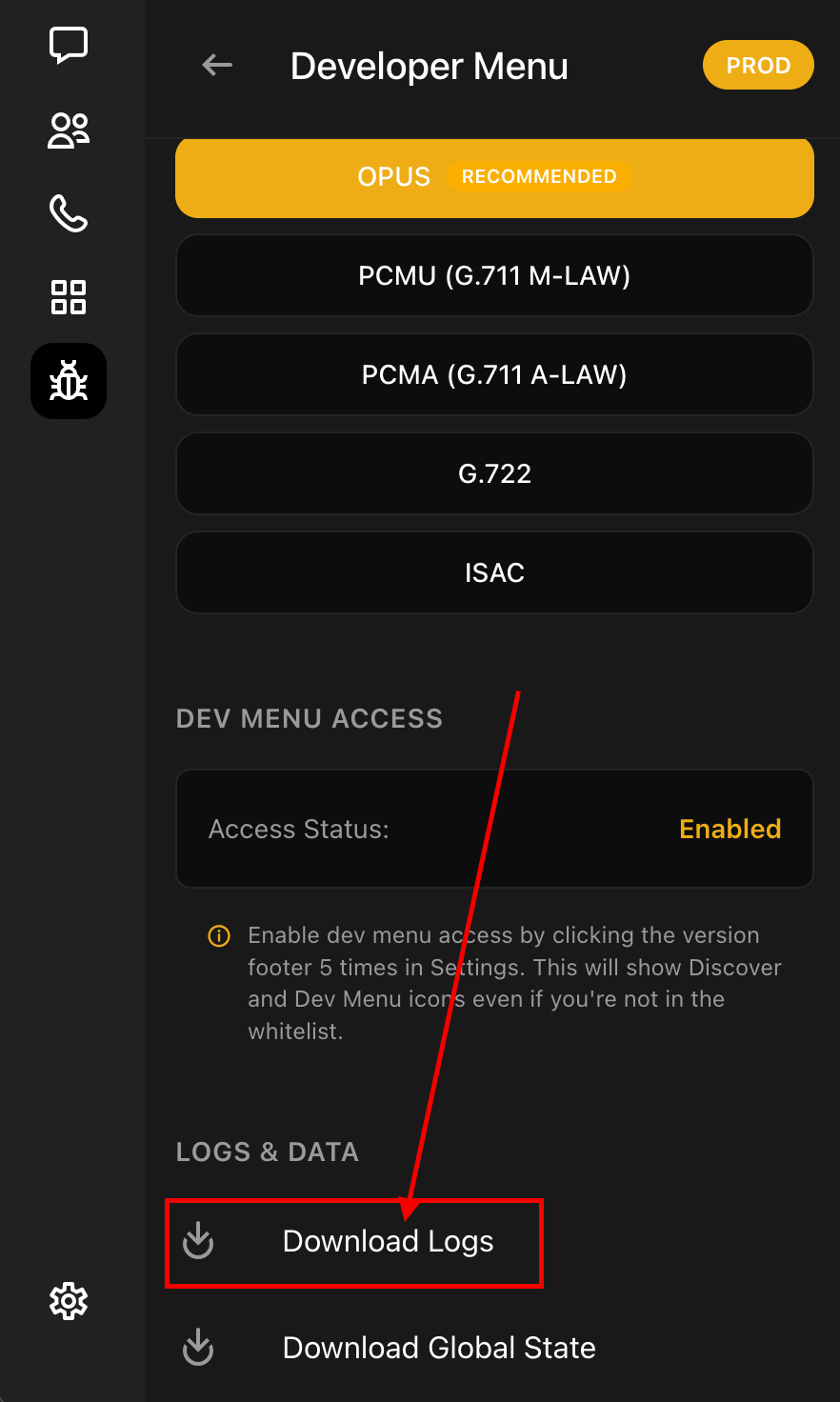
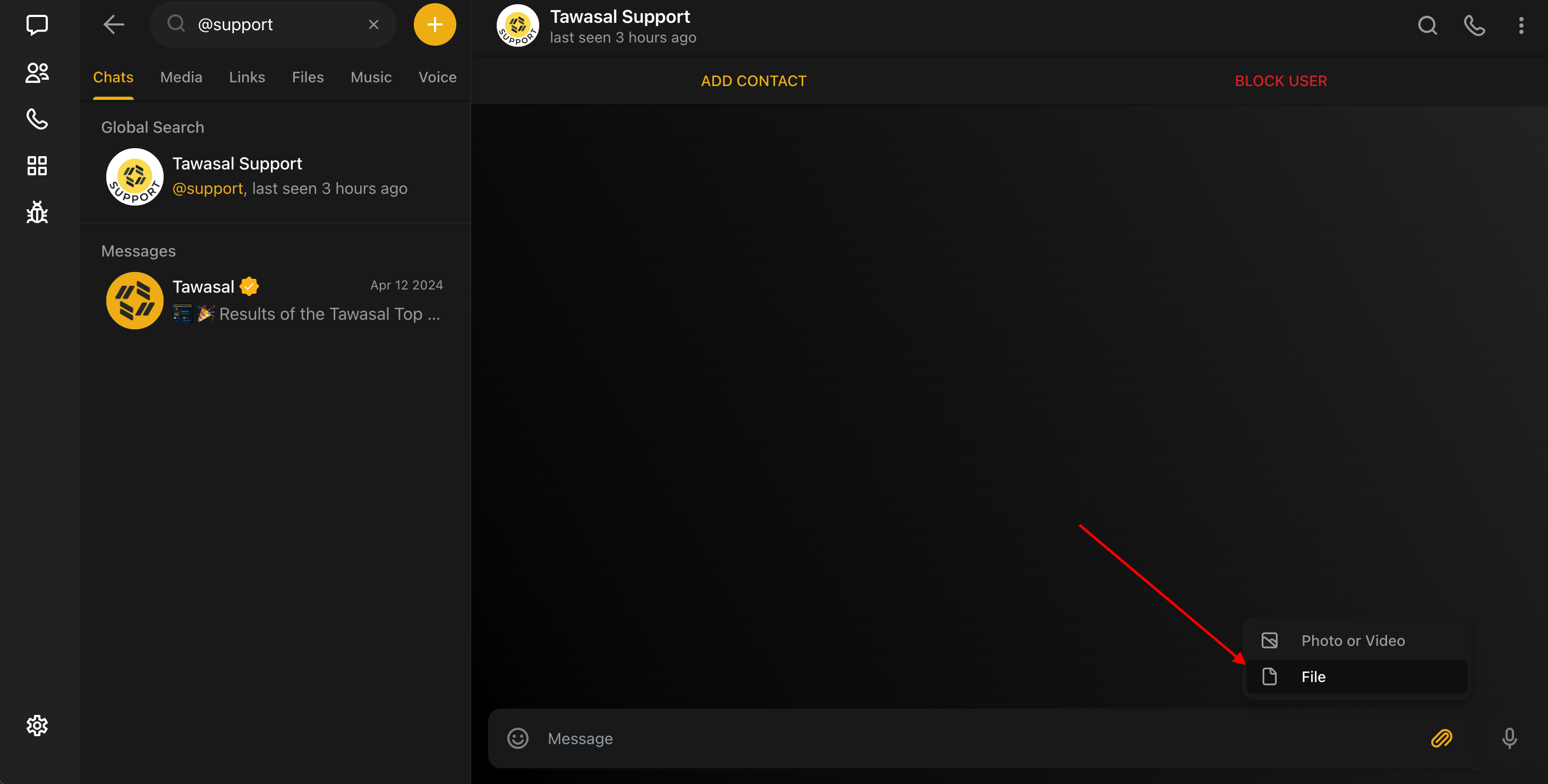
Scroll down and click Download Logs. Save the file to a convenient location.
Step 5. Send the Logs
Send the saved file to @support.
 IOS
IOS
I am NOT logged in to Tawasal
Step 1. Open the Hidden Menu
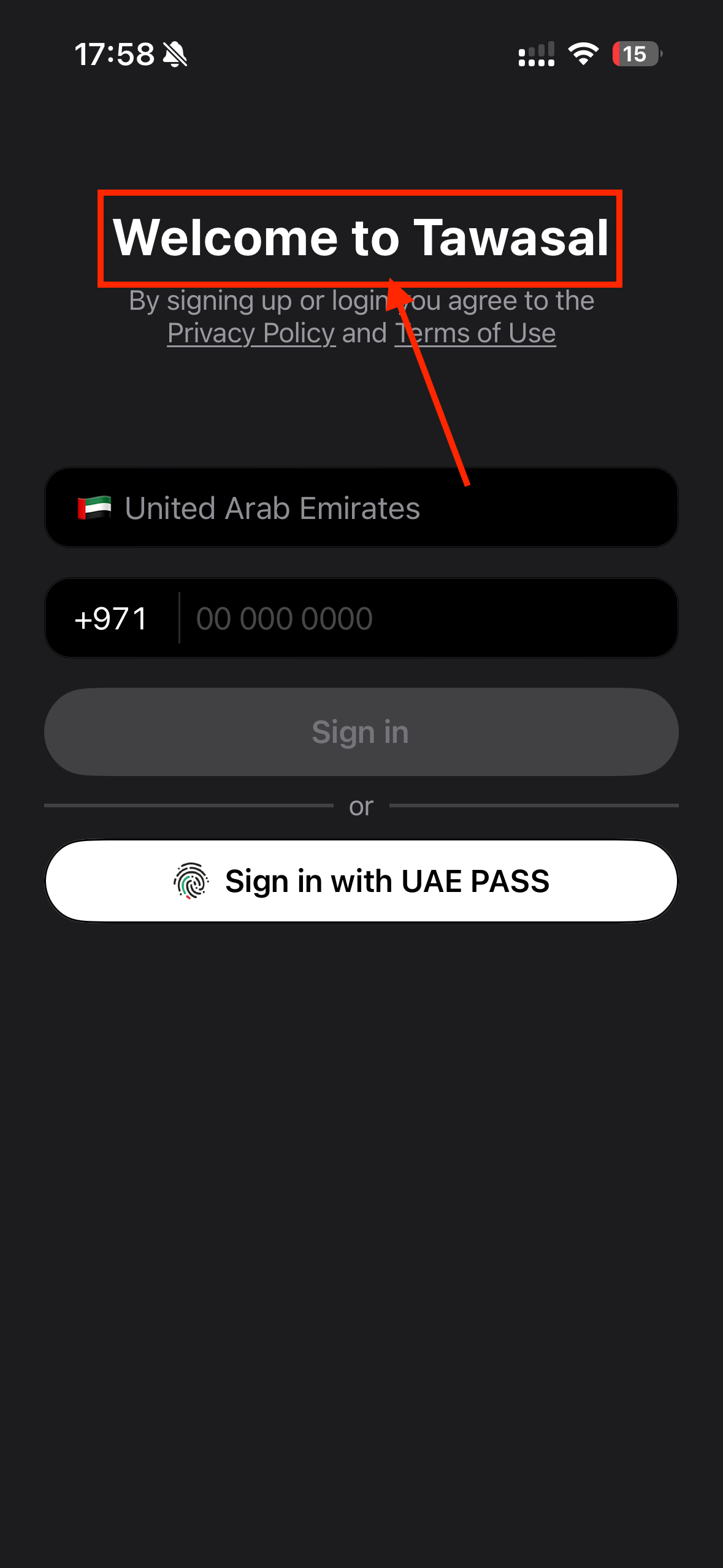
On the phone number entry screen, tap 10 times on the "Welcome to Tawasal" text.
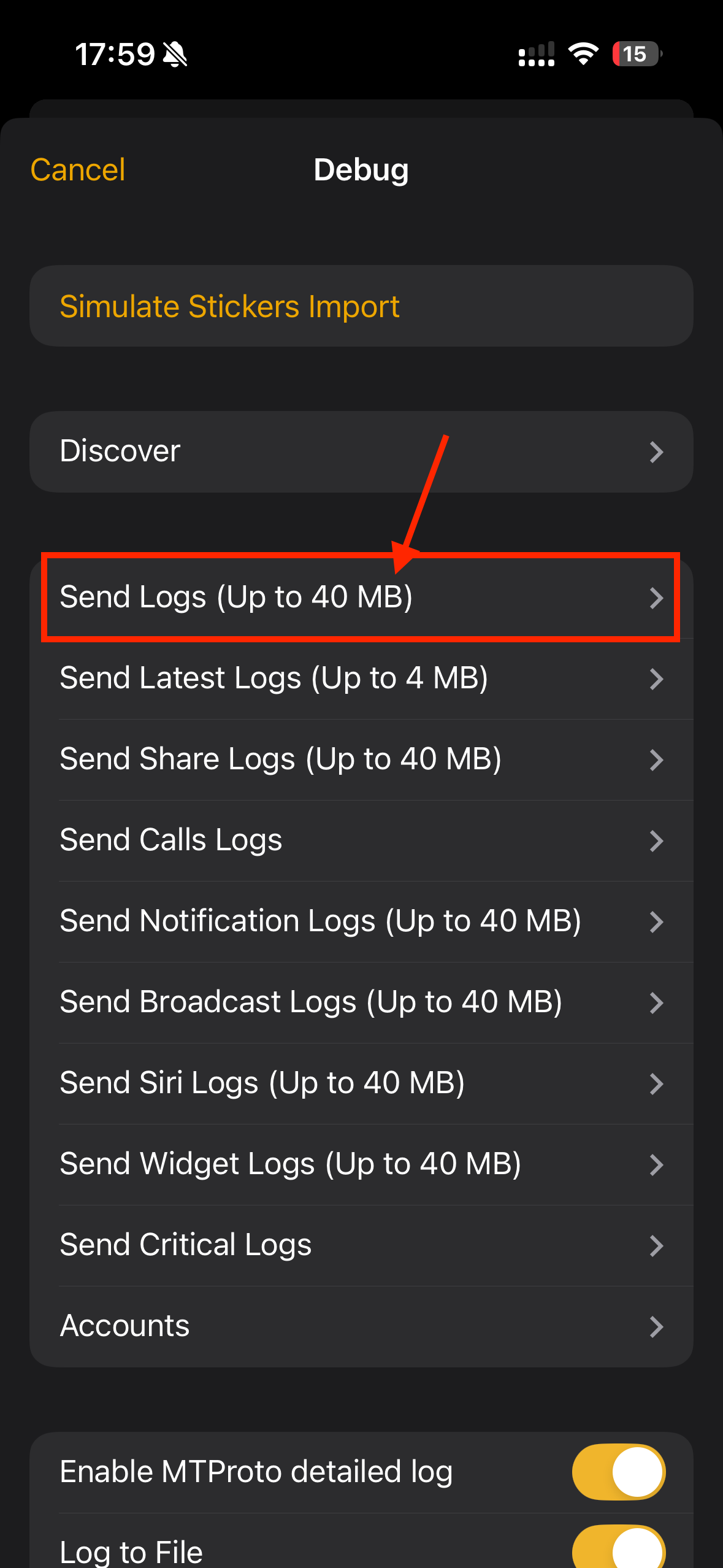
Step 2. Send Logs
Tap Send Logs. Save the file to your device or share it using any convenient method.(messenger, email, etc.)
I AM logged in to Tawasal
Step 1. Open the Hidden Menu
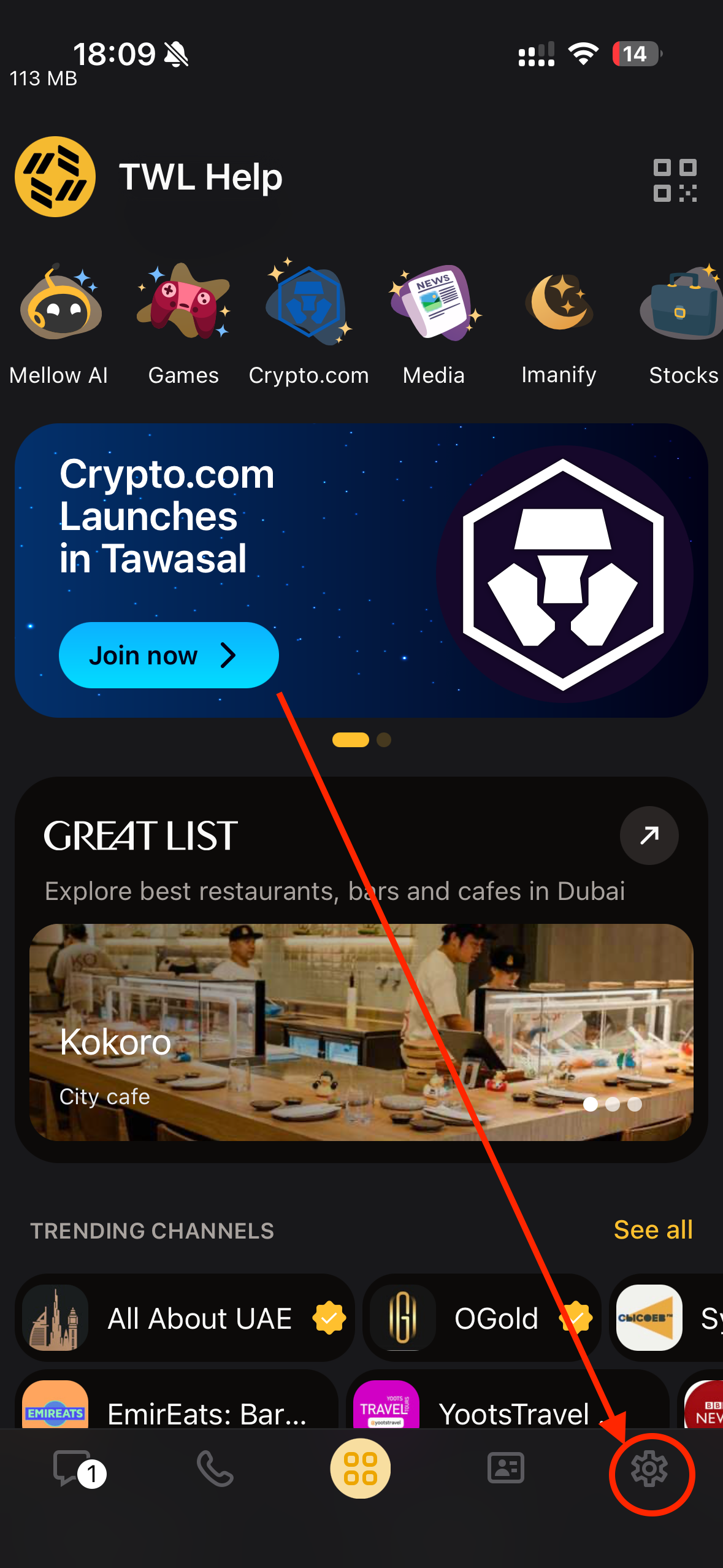
Tap 10 times on the Settings icon in the bottom navigation bar.
Step 2. Send Logs
Tap Send Logs
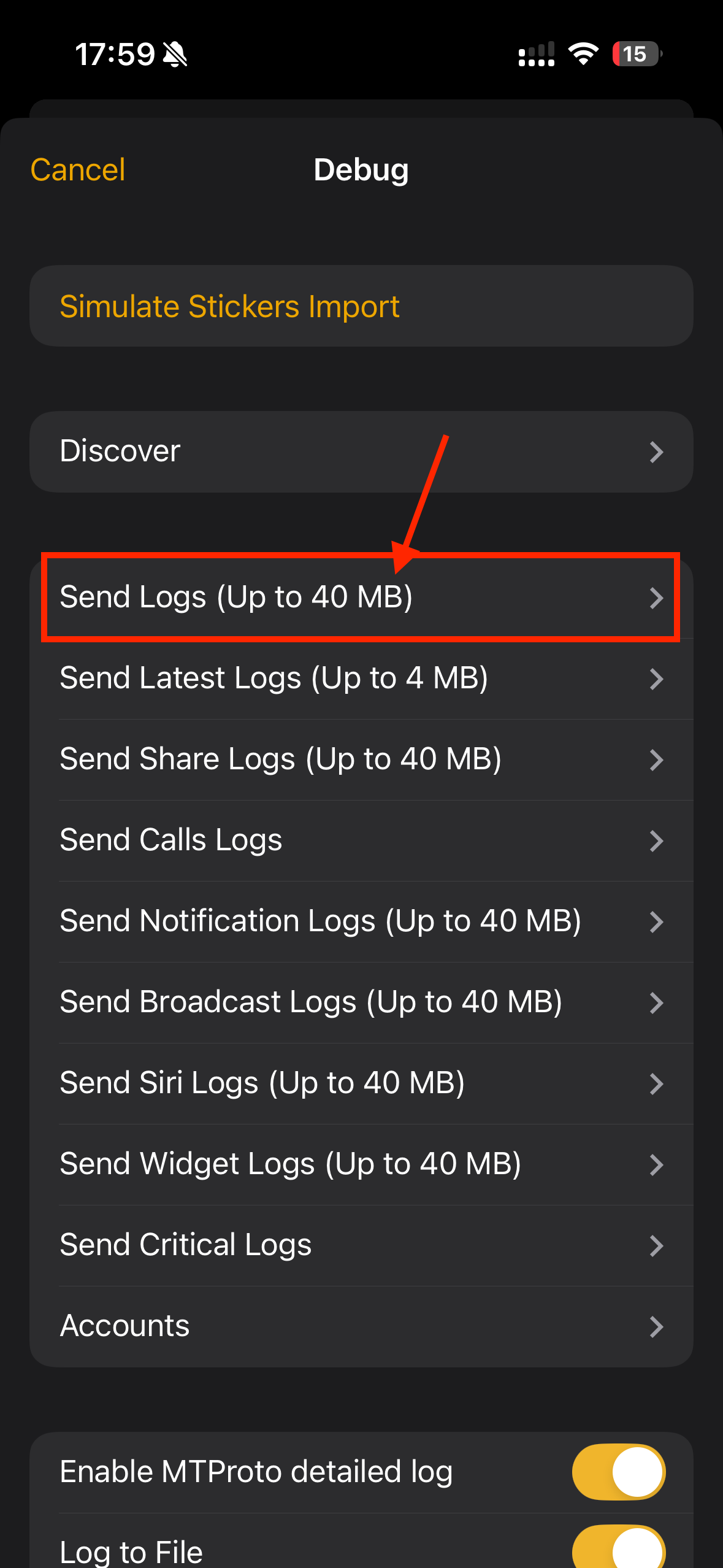
Select @support from the contact list.
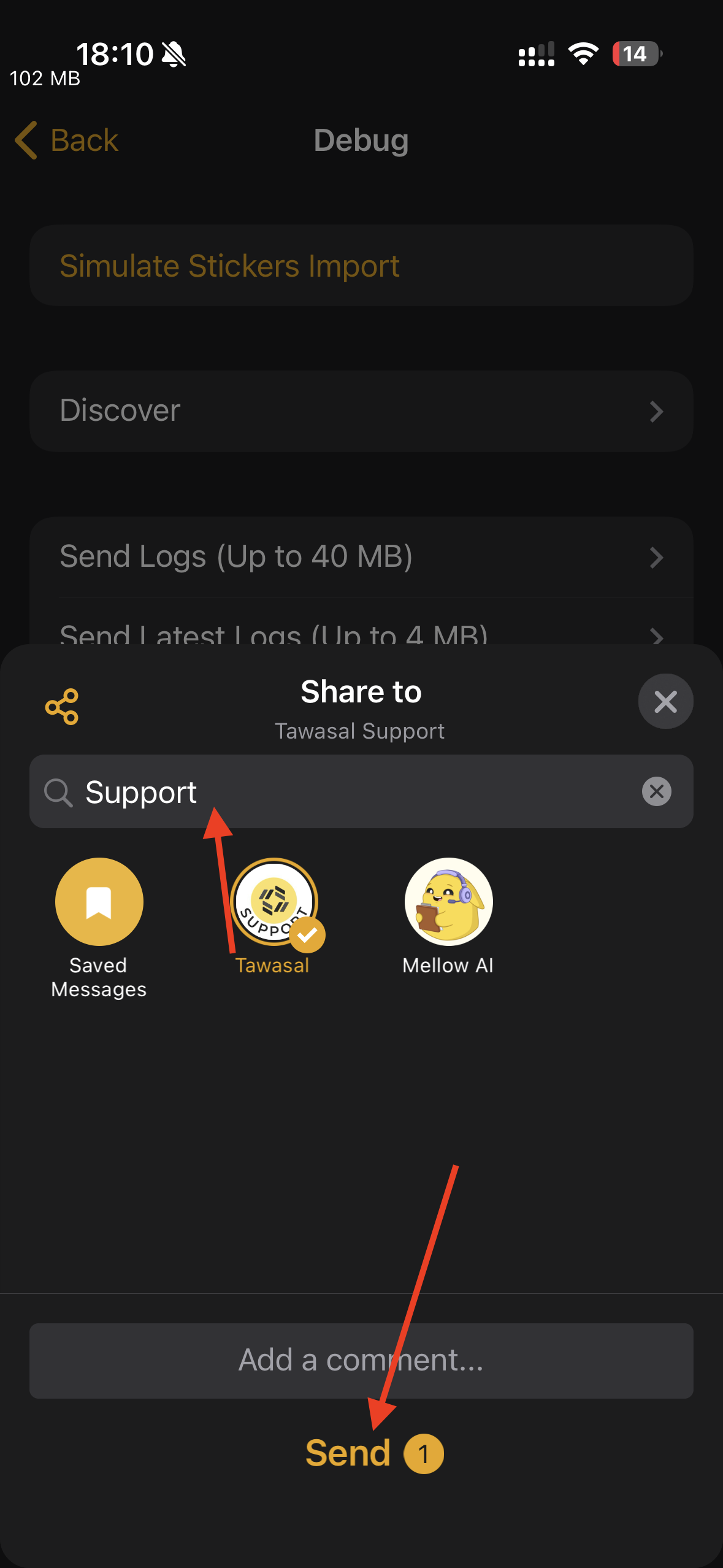
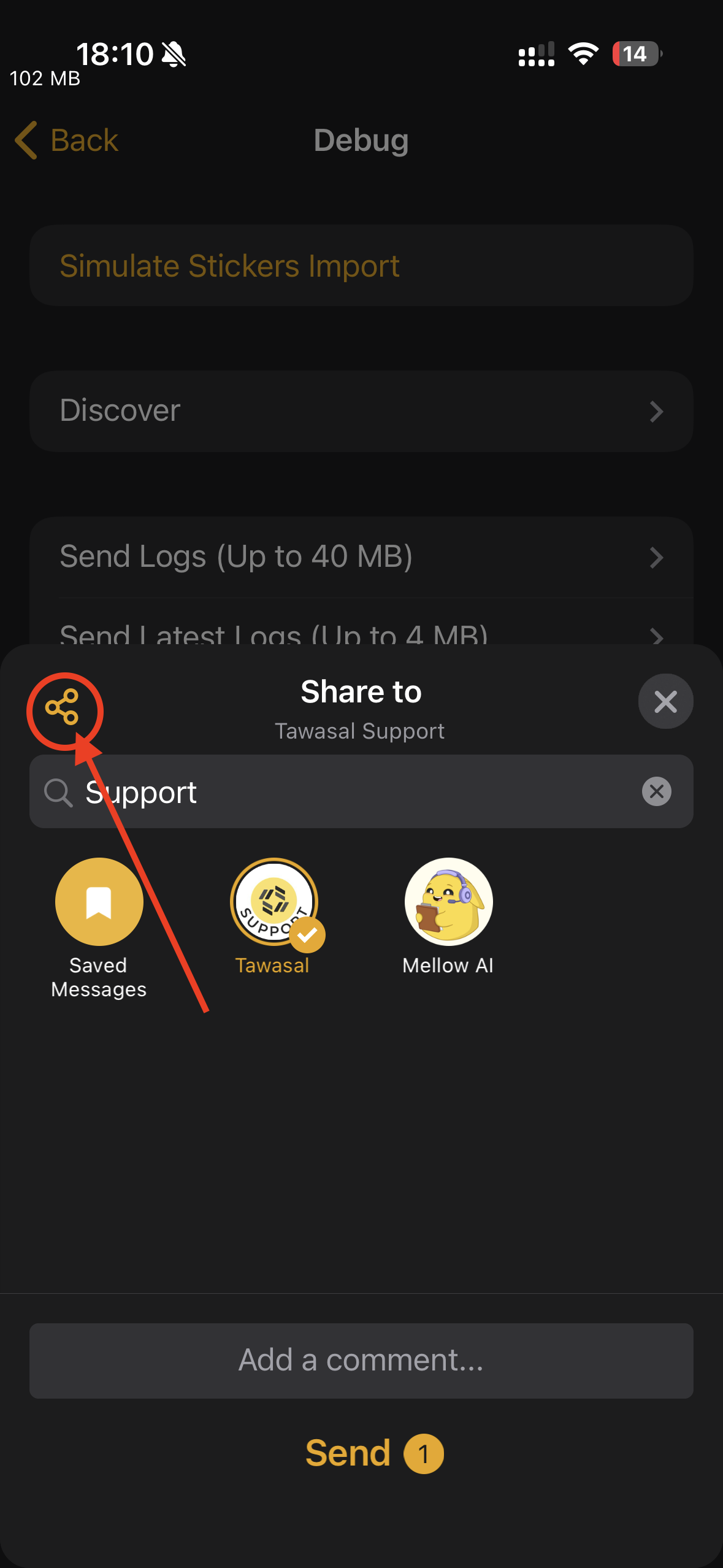
Alternatively, you can send the logs using any other convenient method (messenger, email, etc.).
 Android
I am NOT logged in to Tawasal
Step 1. Open the Hidden Menu
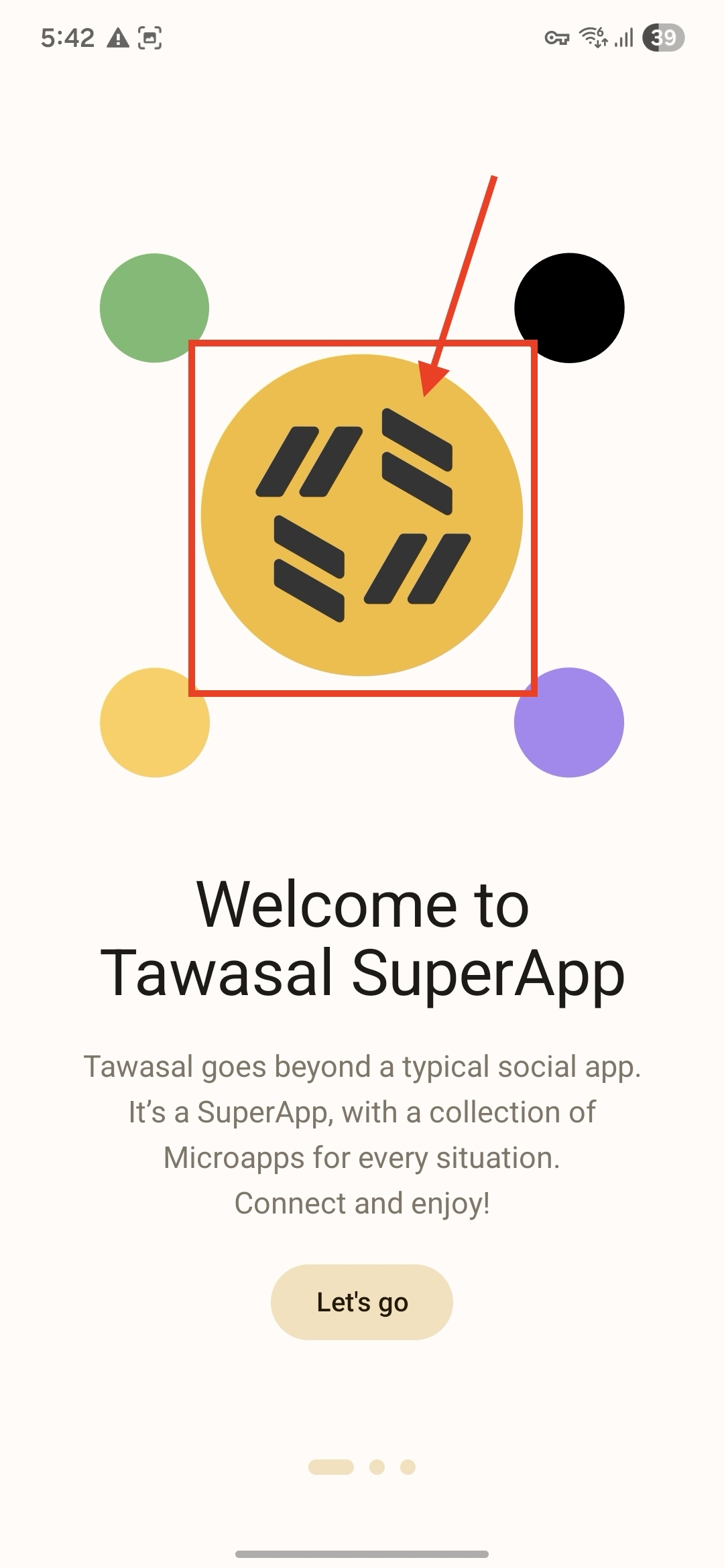
On the welcome screen, tap 10 times on the Tawasal icon.
Step 2. Open Log Settings
At the bottom of the list, tap Configure logs.
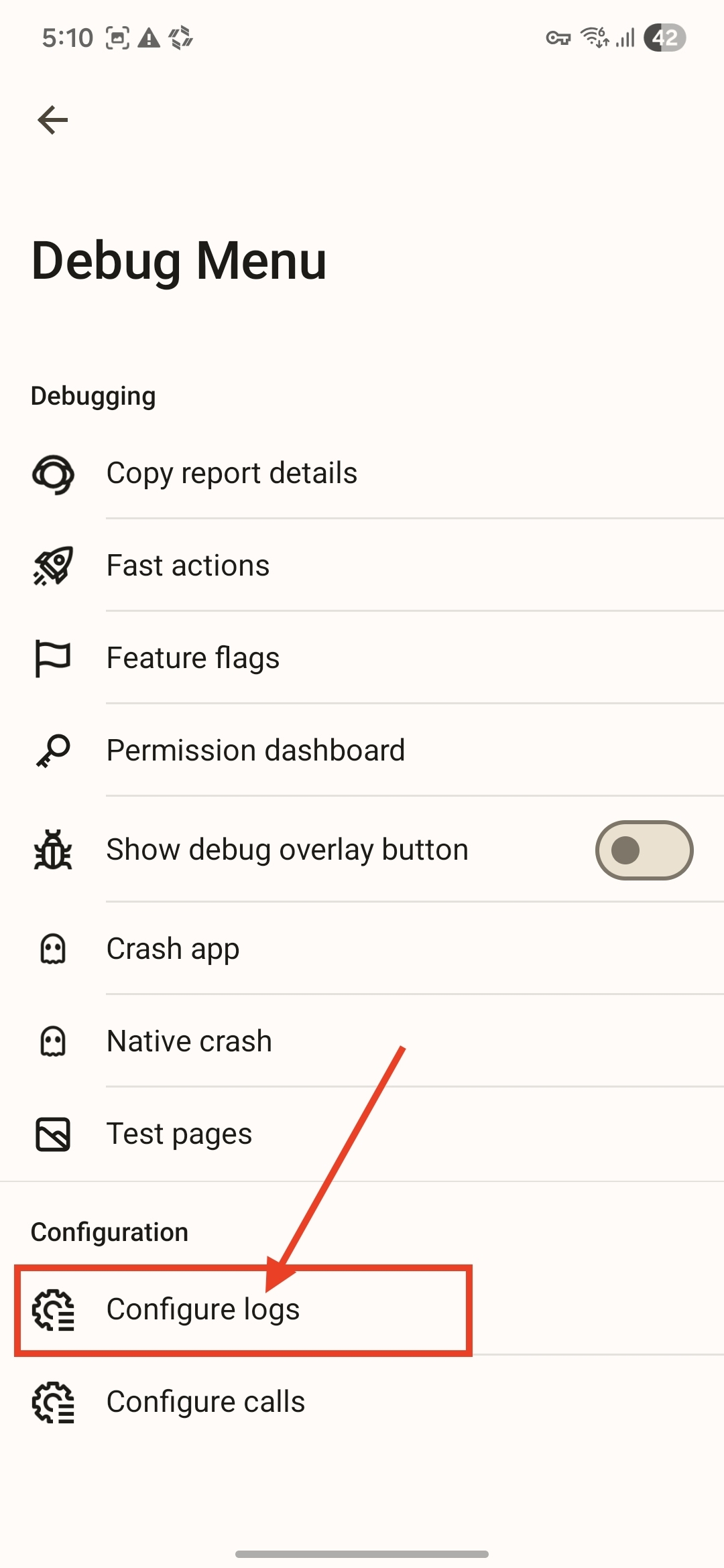
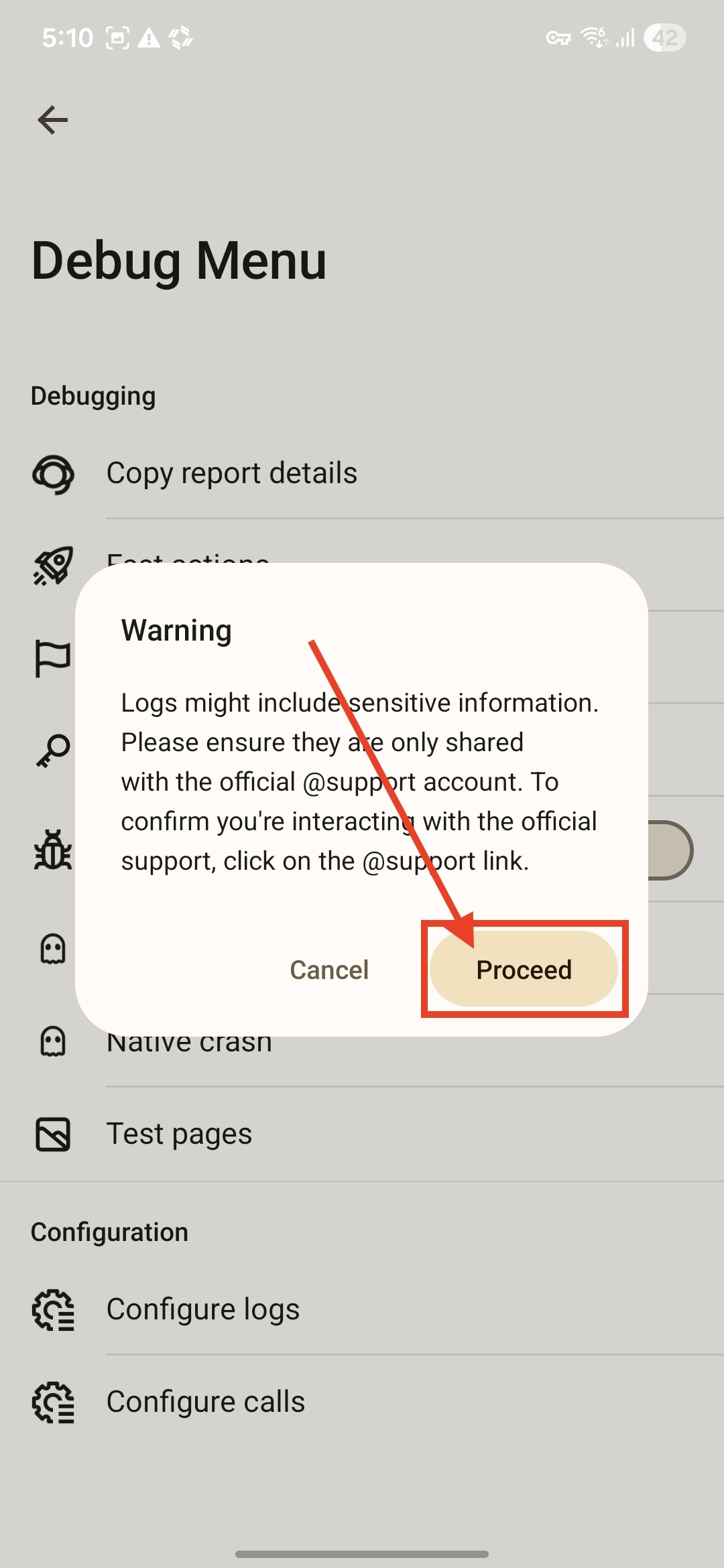
Step 3. Confirm the Action
Tap Proceed.
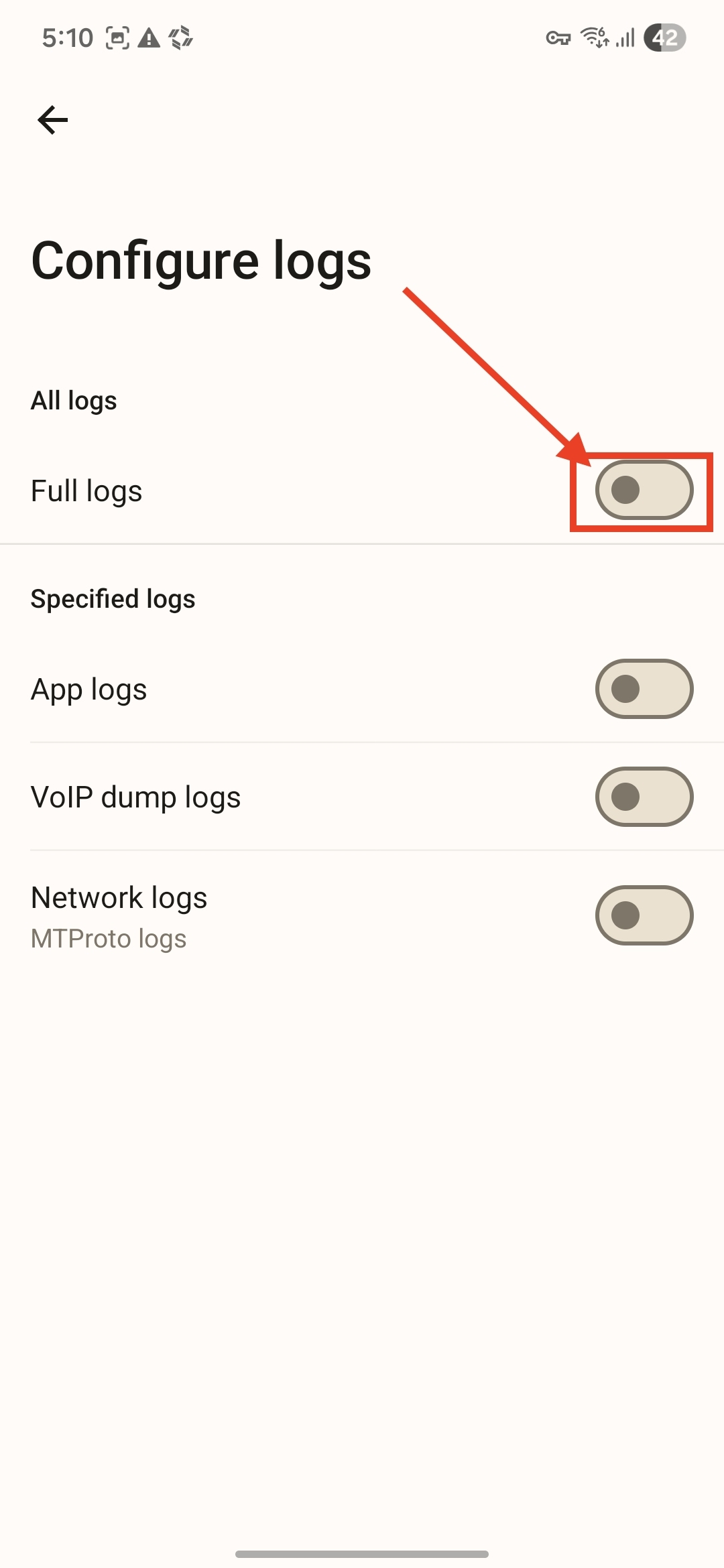
Step 4. Enable Full Logs
Toggle Full logs to the active position (if it is currently off).
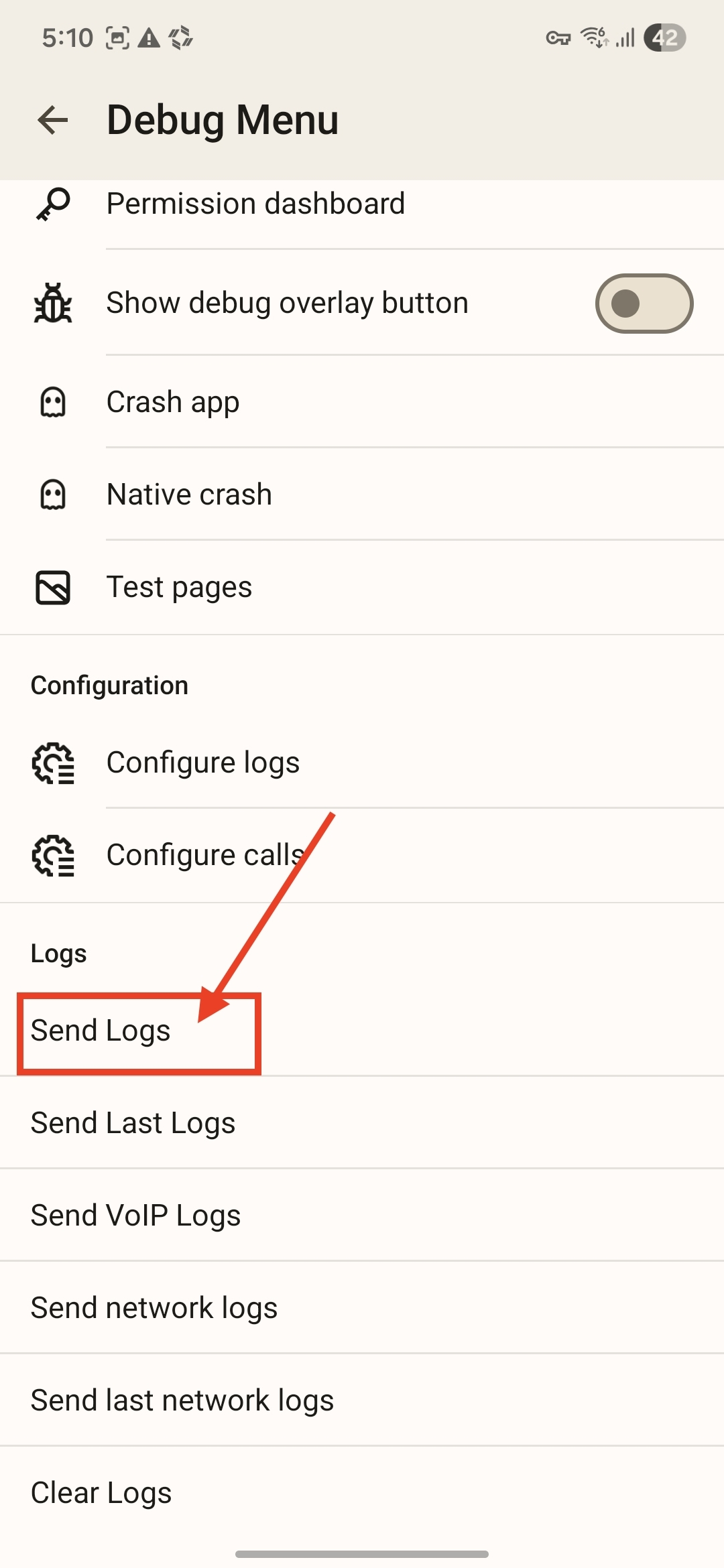
Step 5. Send Logs
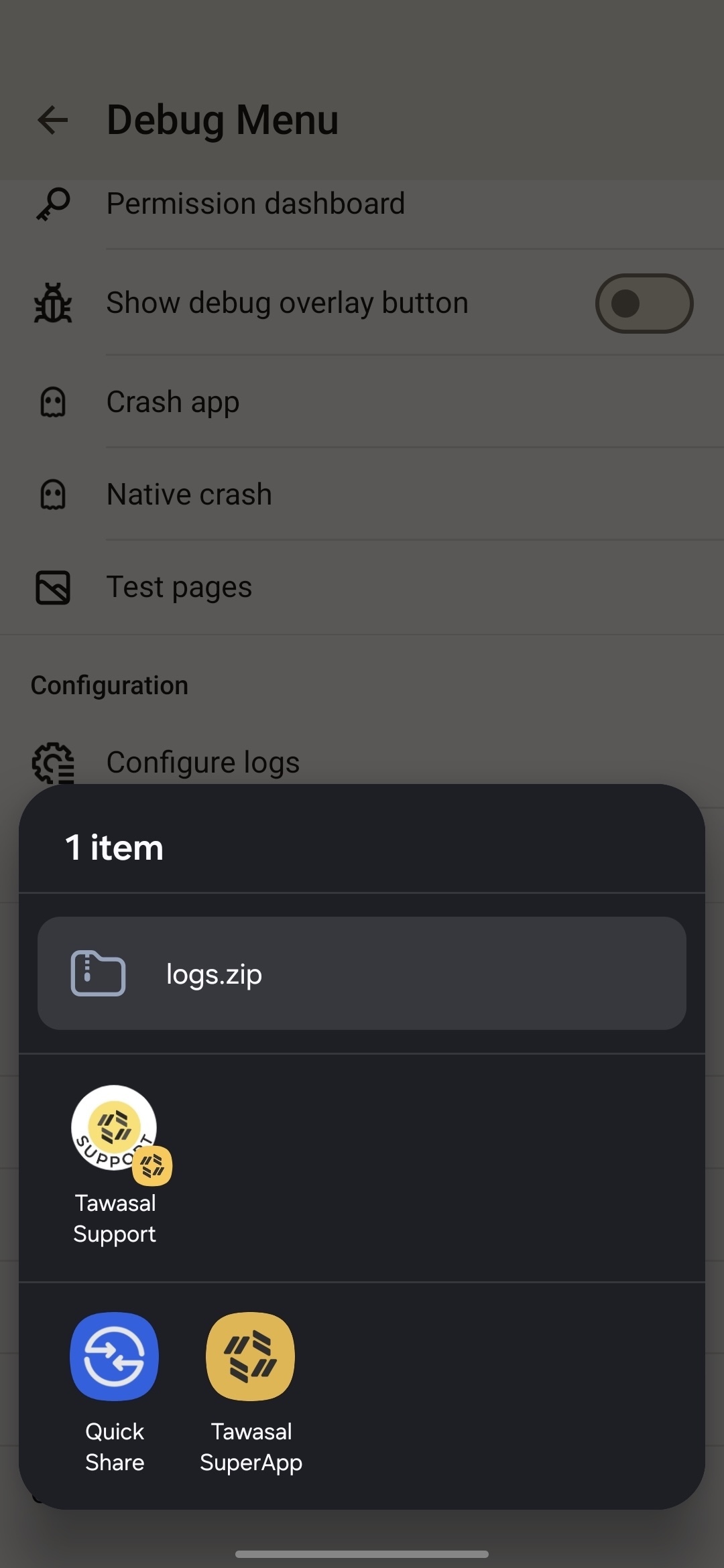
Go back to the previous screen, scroll down and tap Send Logs.
Save the logs to your phone or share them using any convenient method (messenger, email, etc.).
I AM logged in to Tawasal
Step 1. Open Settings
Go to the app Settings and scroll down to the app version number.
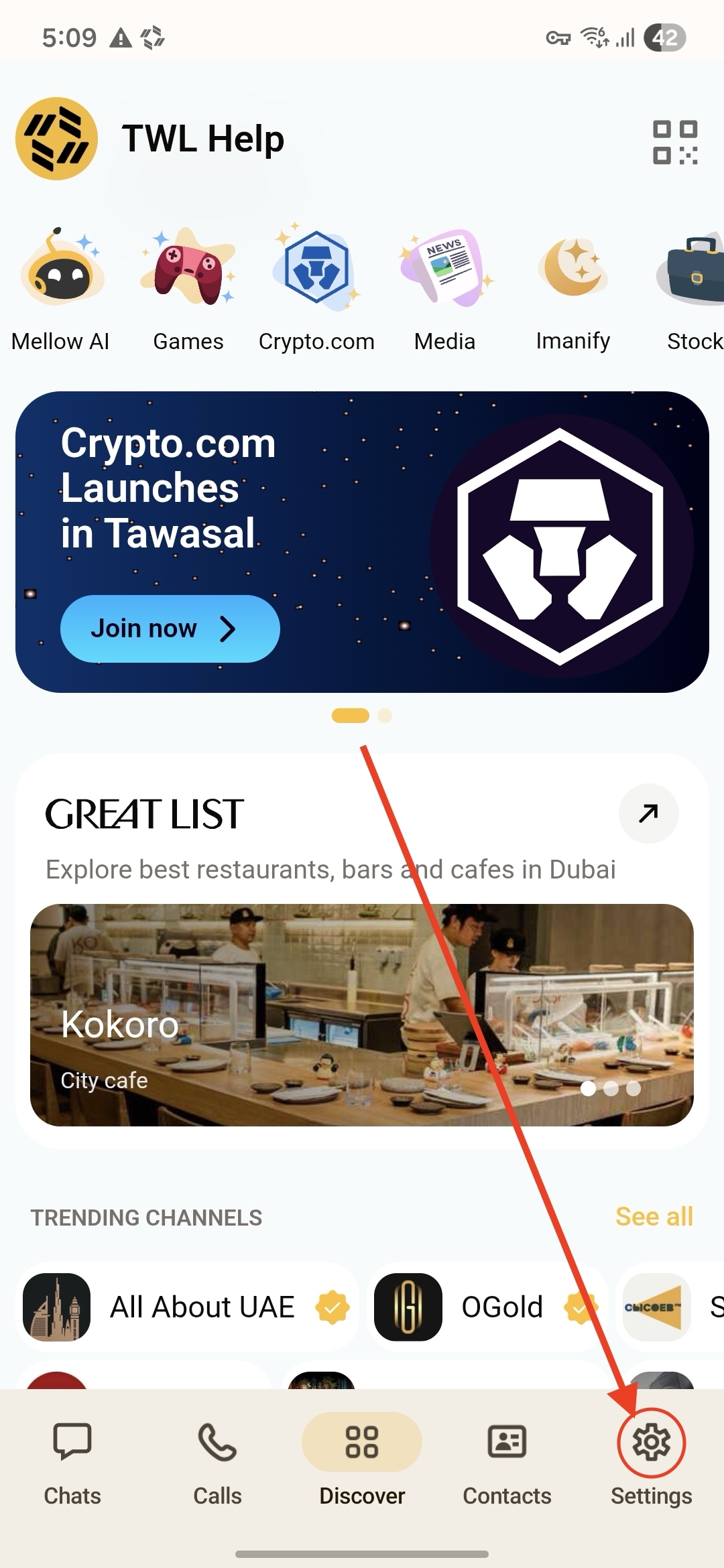
Step 2. Activate Debug Mode (Part 1)
Long tap on the app version and hold until 3 emojis appear.
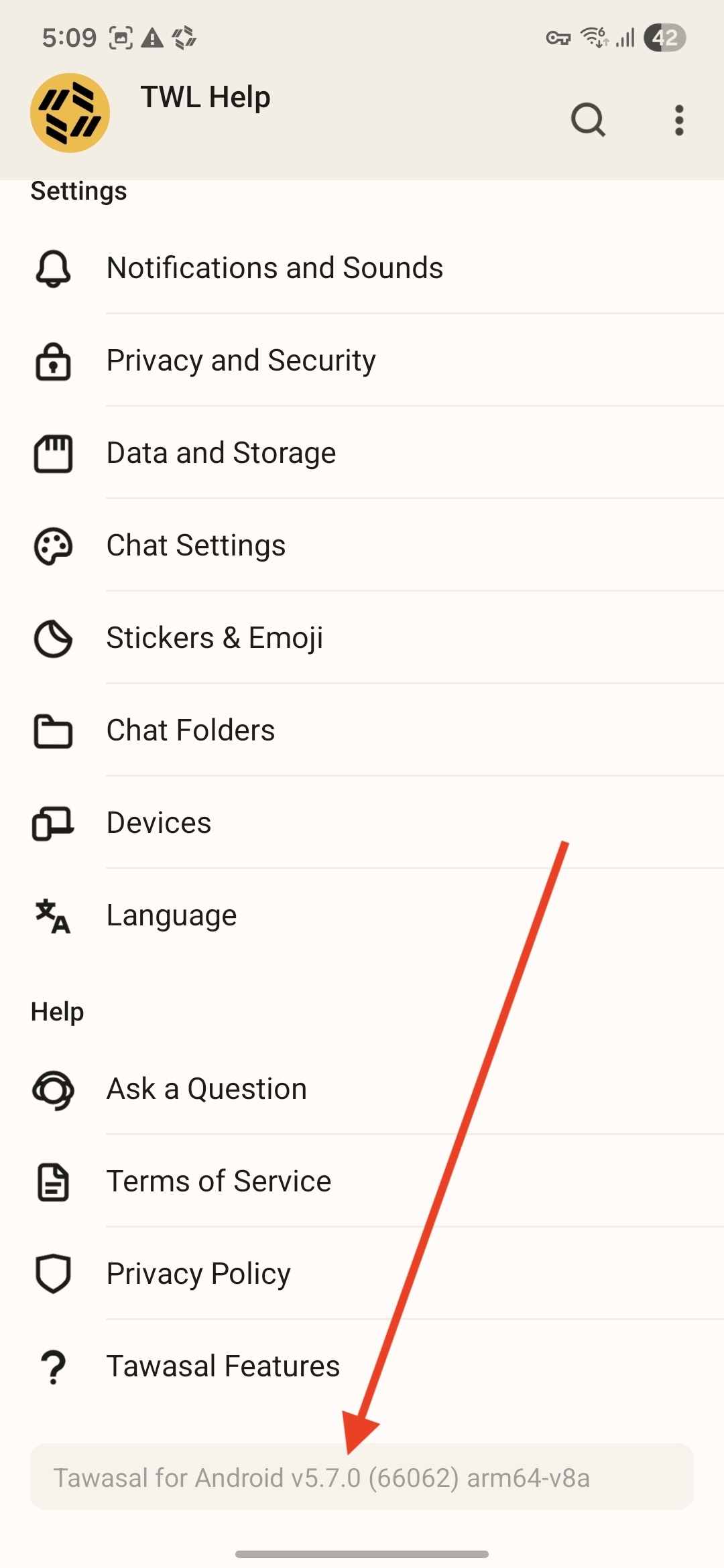
Step 3. Activate Debug Mode (Part 2)
Long tap on the app version again — the Debug menu will open.
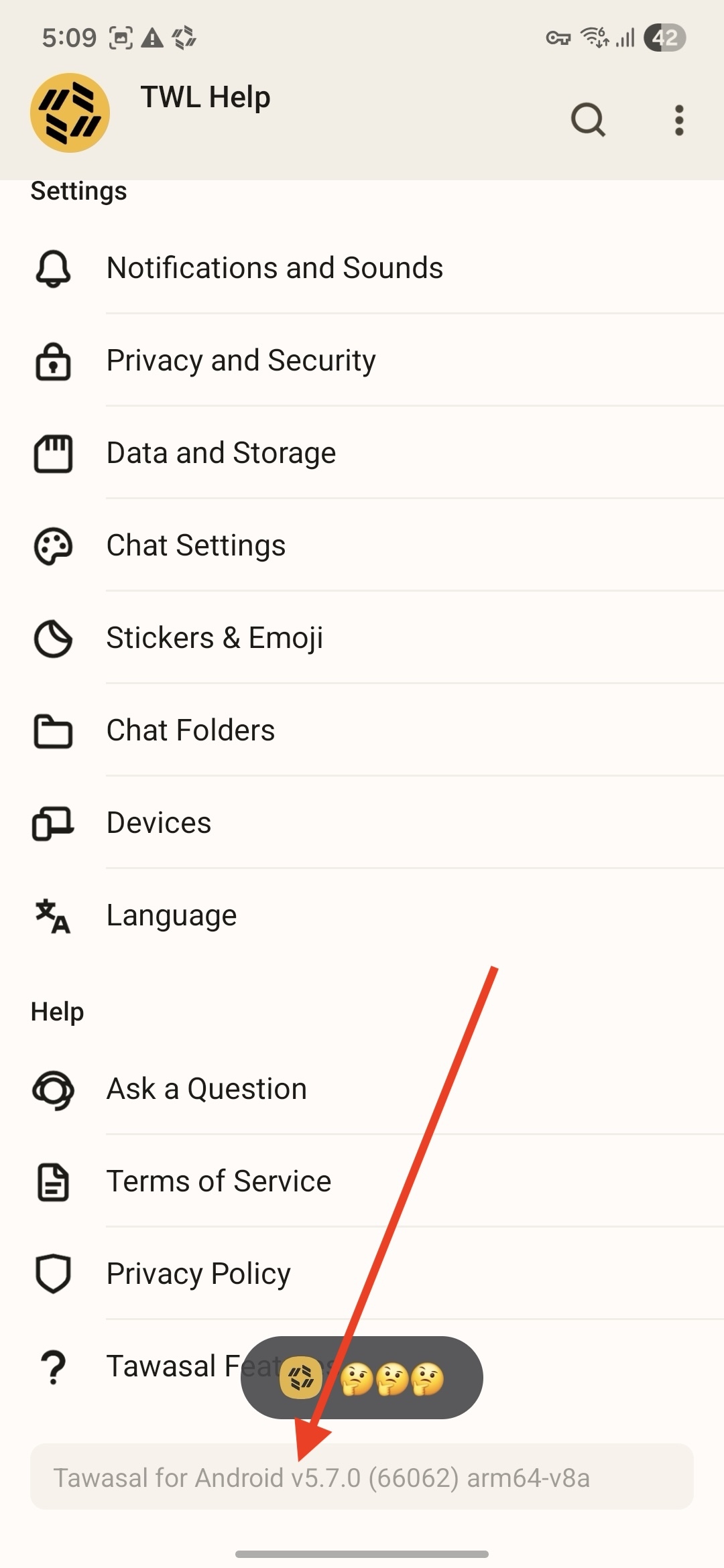
Step 4. Open Log Settings
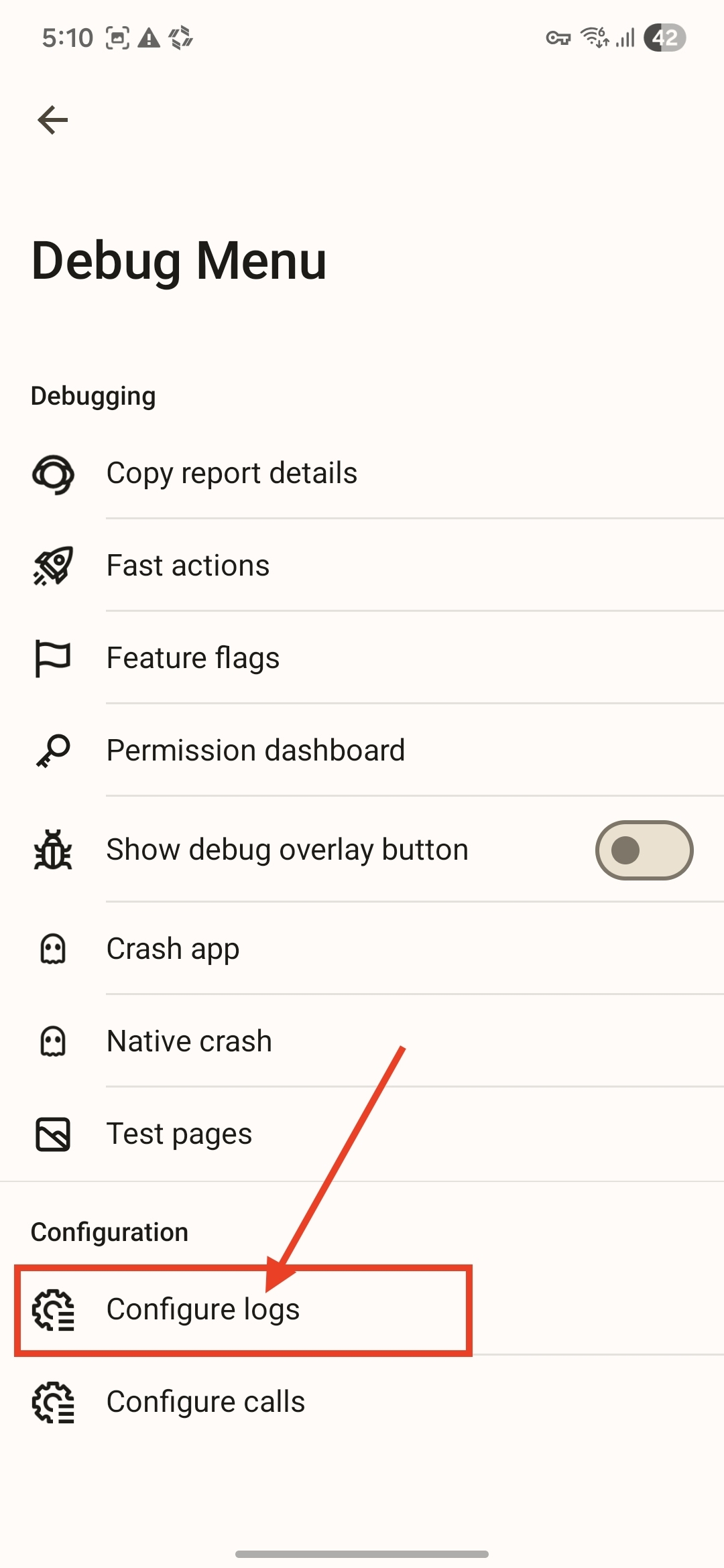
At the bottom of the list, tap Configure logs.
Step 5. Confirm the Action
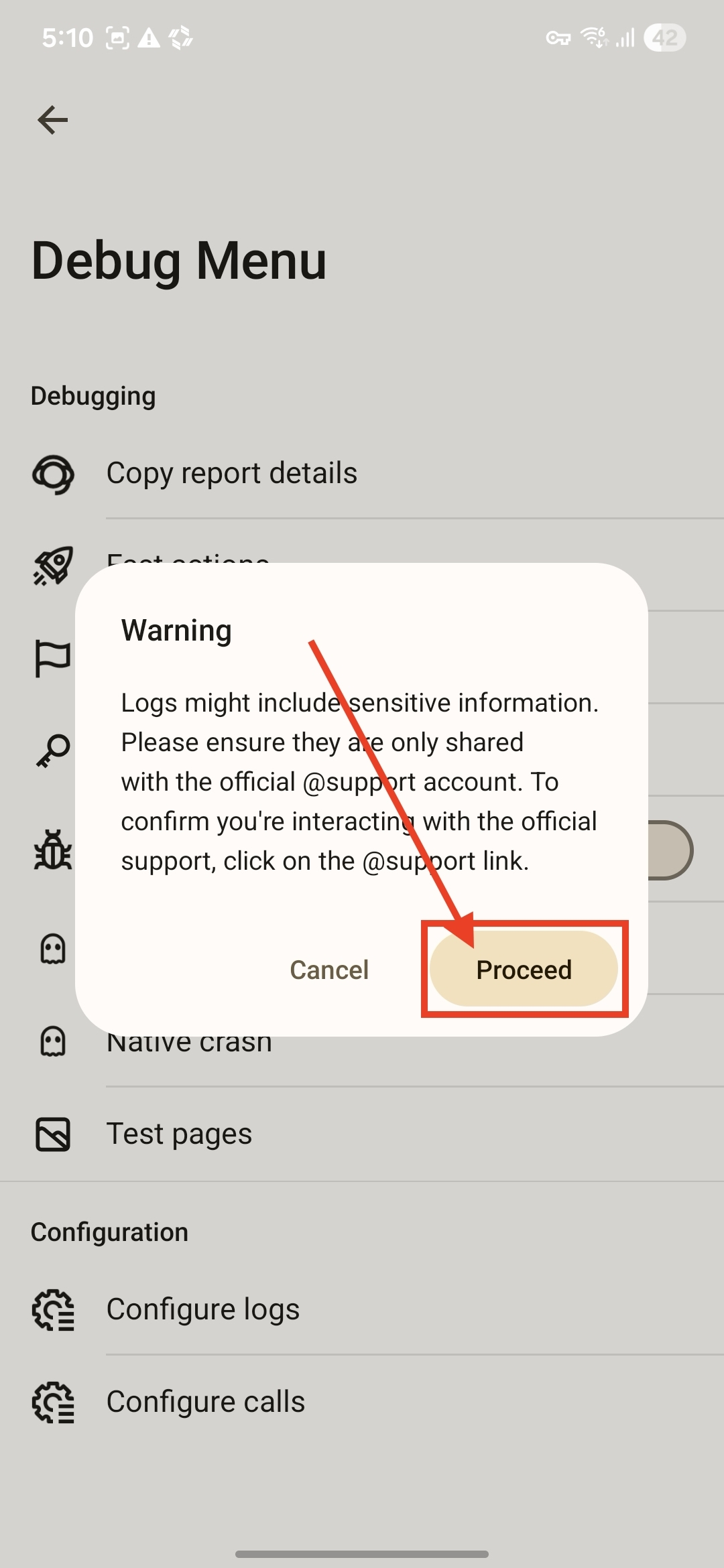
Tap Proceed.
Step 6. Enable Full Logs
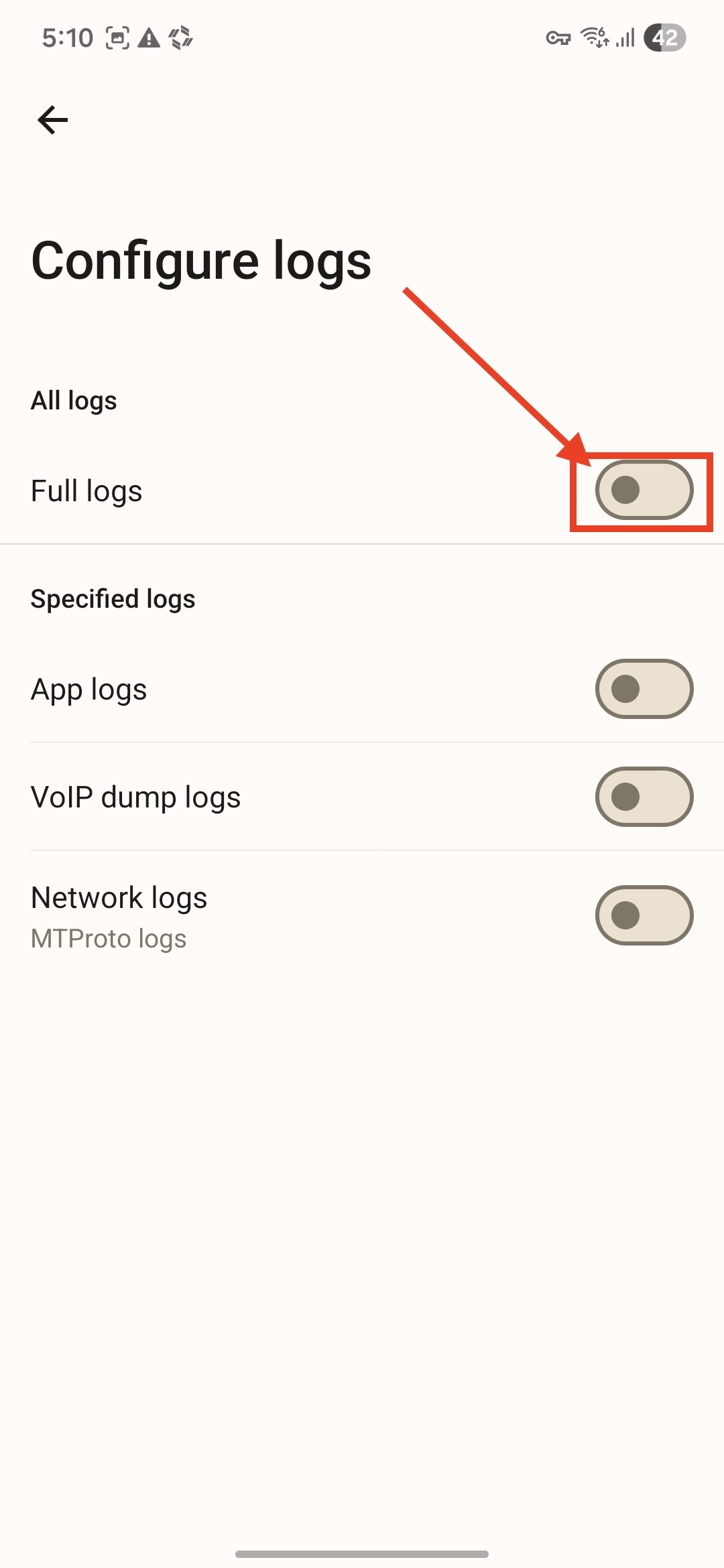
Toggle Full logs to the active position (if it is currently off).
Step 7. Send Logs
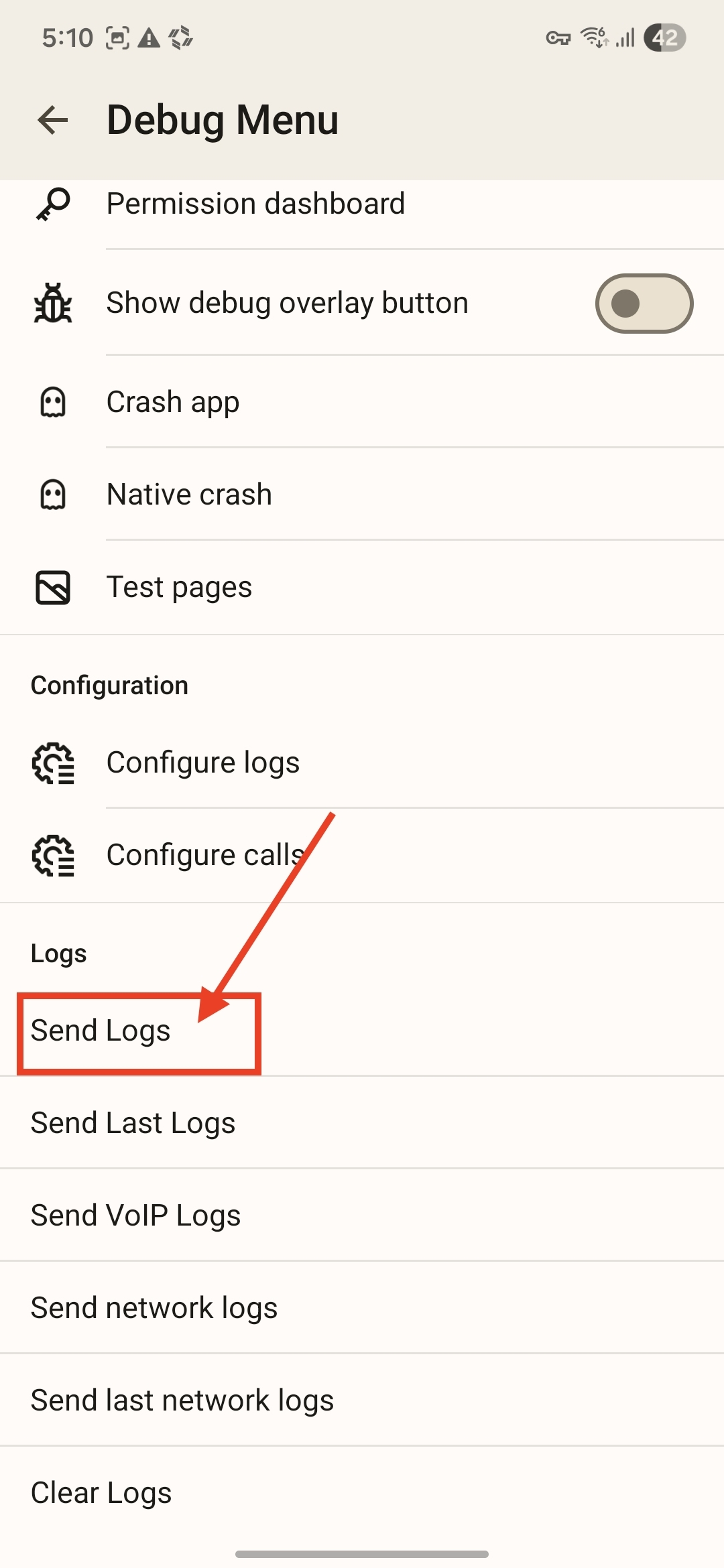
Go back to the previous screen, scroll down and tap Send Logs.
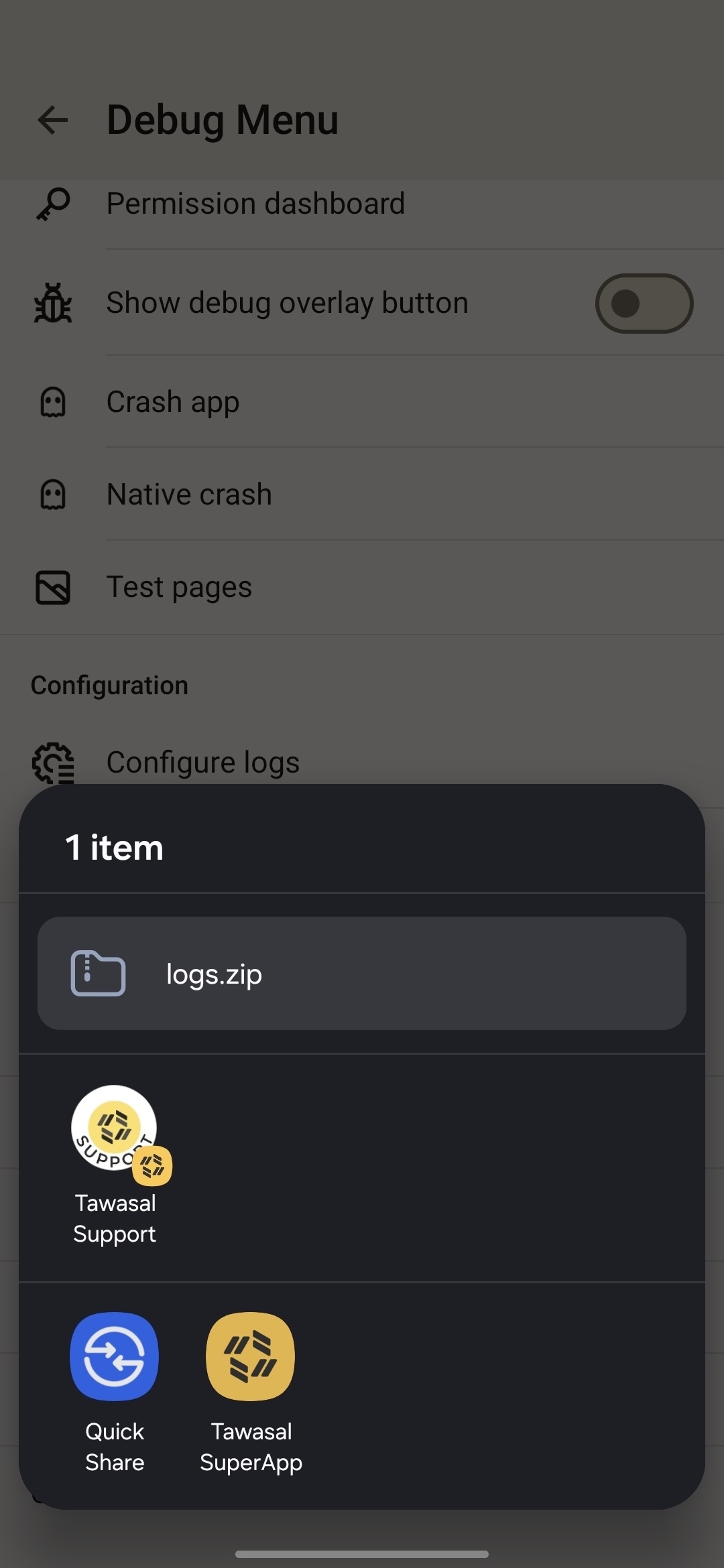
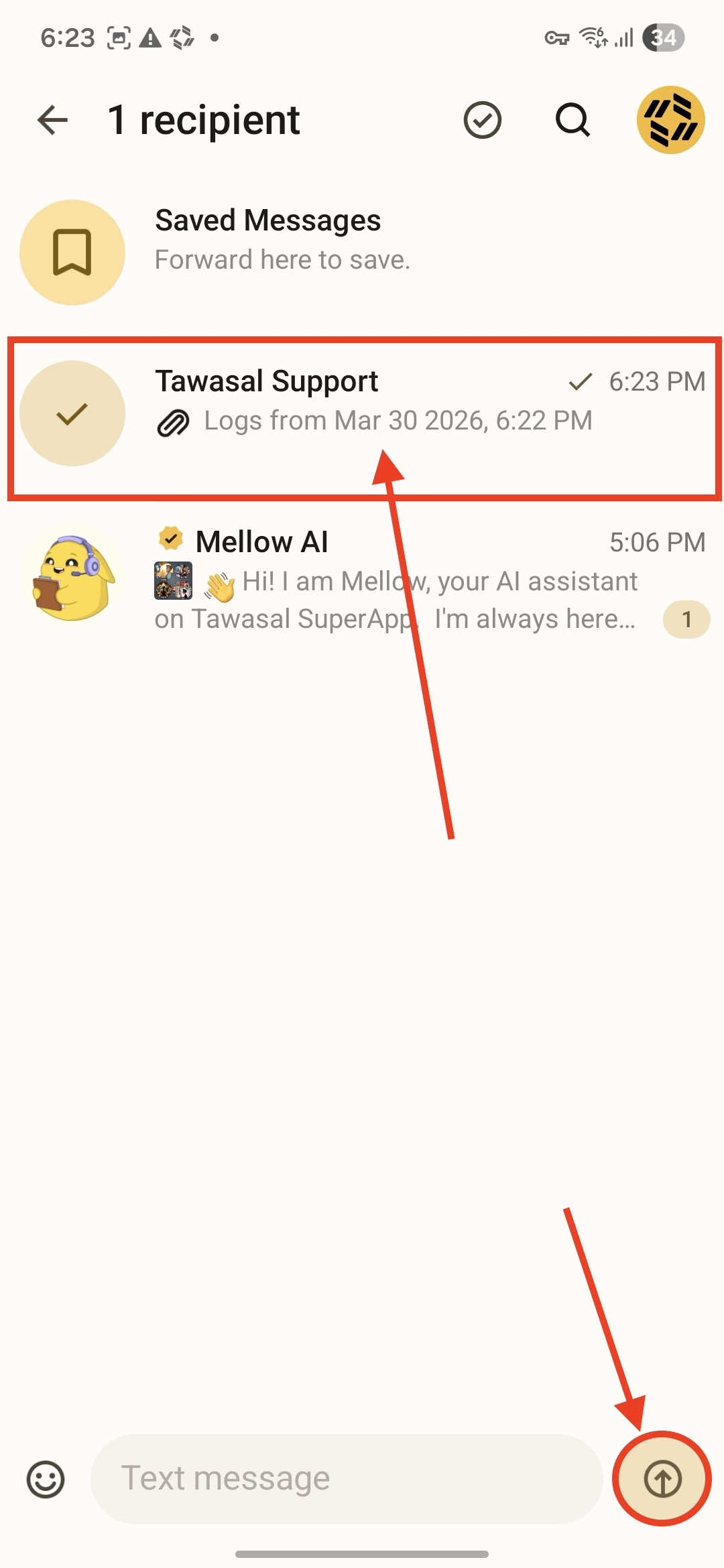
Send logs to @support from Tawasal
Choose Tawasal Super App
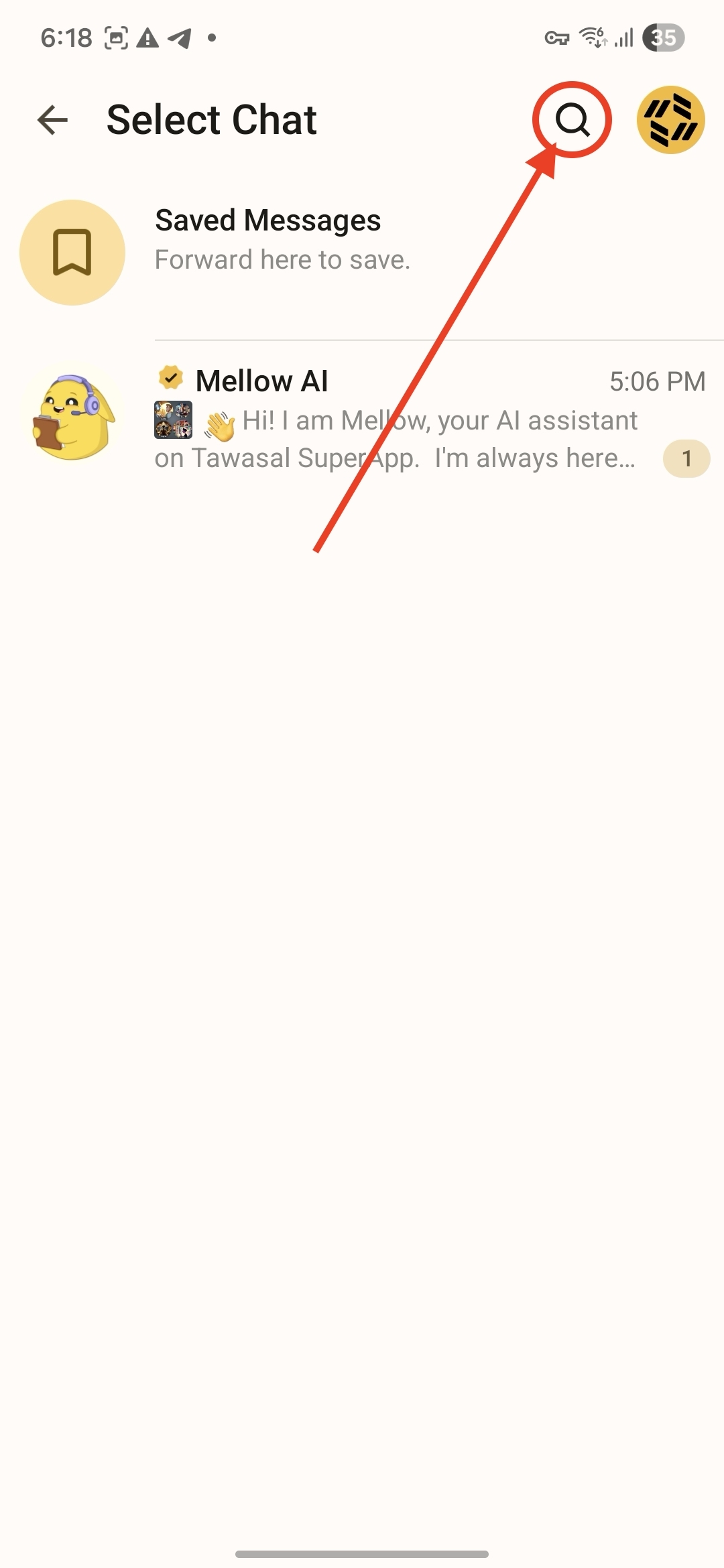
Tap on Search icon (if you don't have chat with Tawasal Support in list)
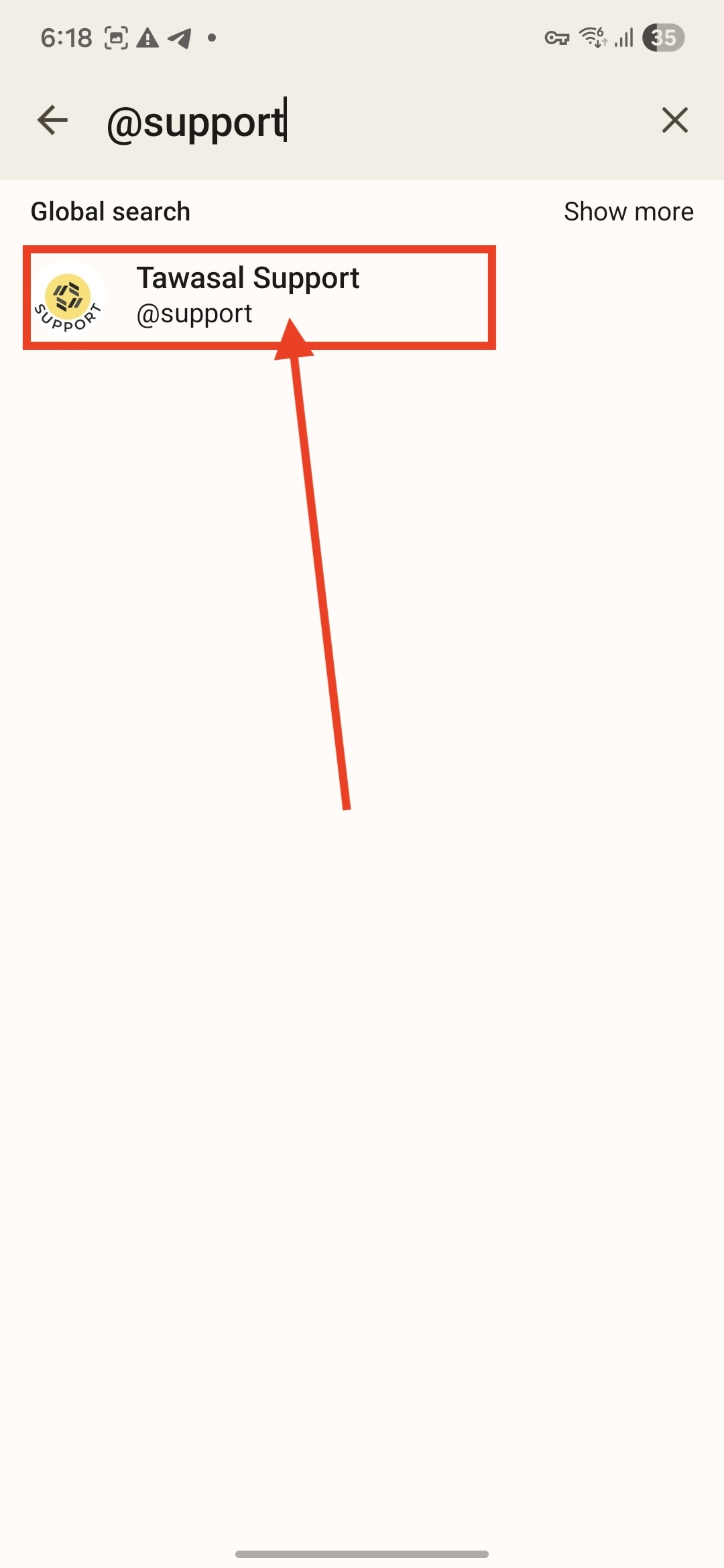
Type @support and choose Tawasal Support account
Send Logs
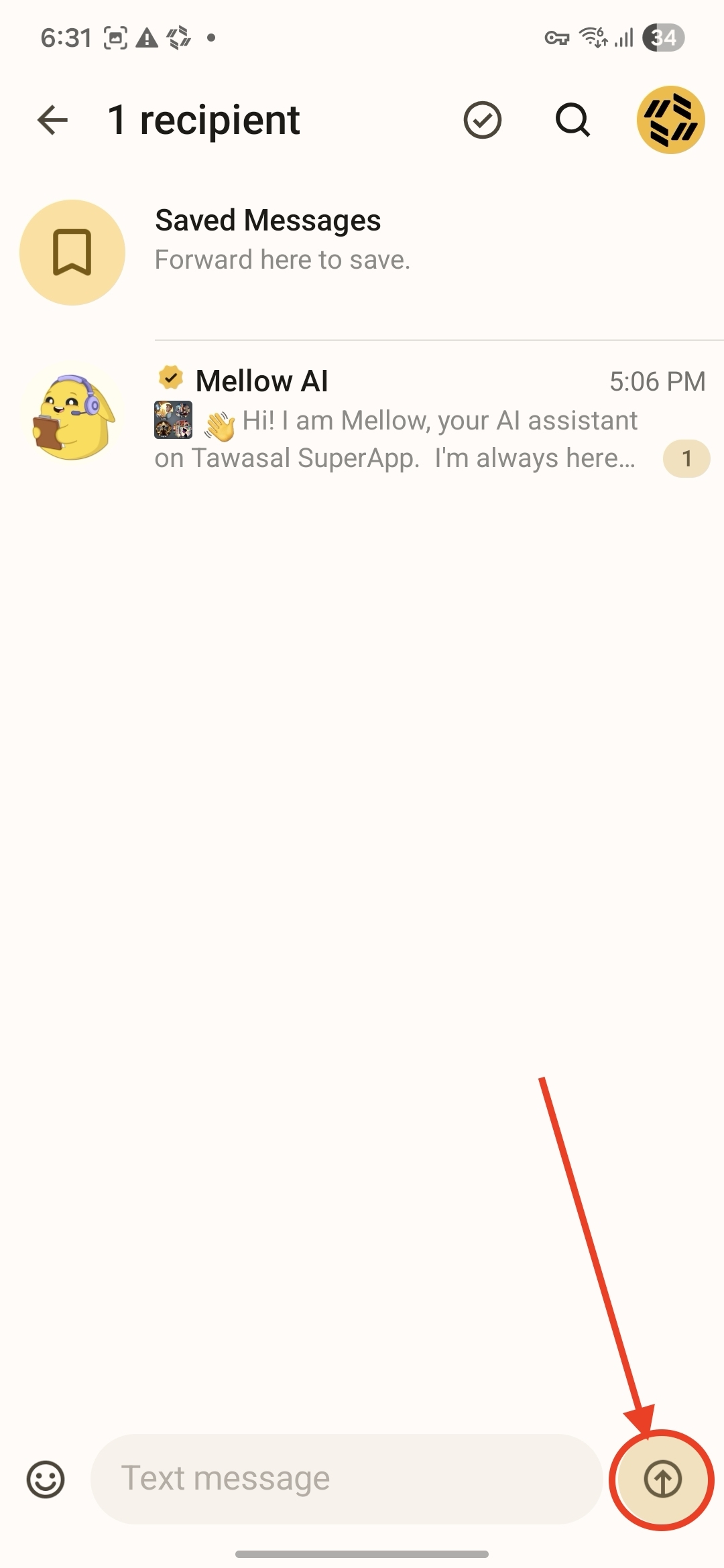
If you already have chat with Tawasal Support account in list. Choose him and type Send
Or save the logs to your phone or share them using any convenient method (messenger, email, etc.).